
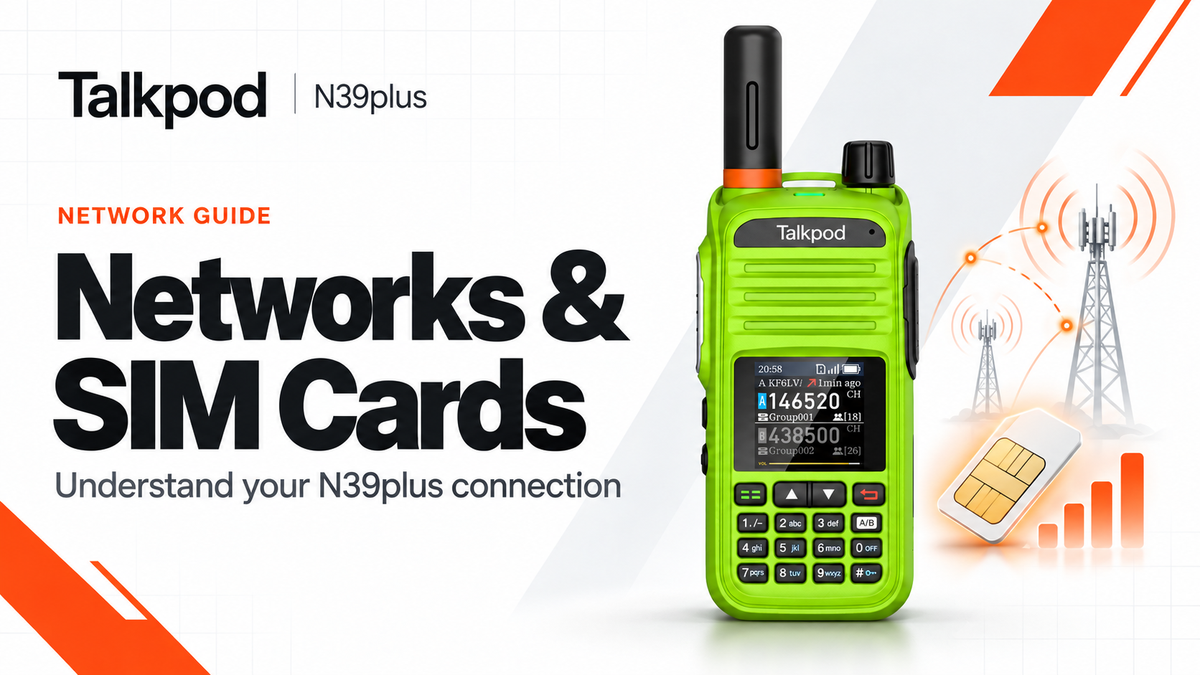
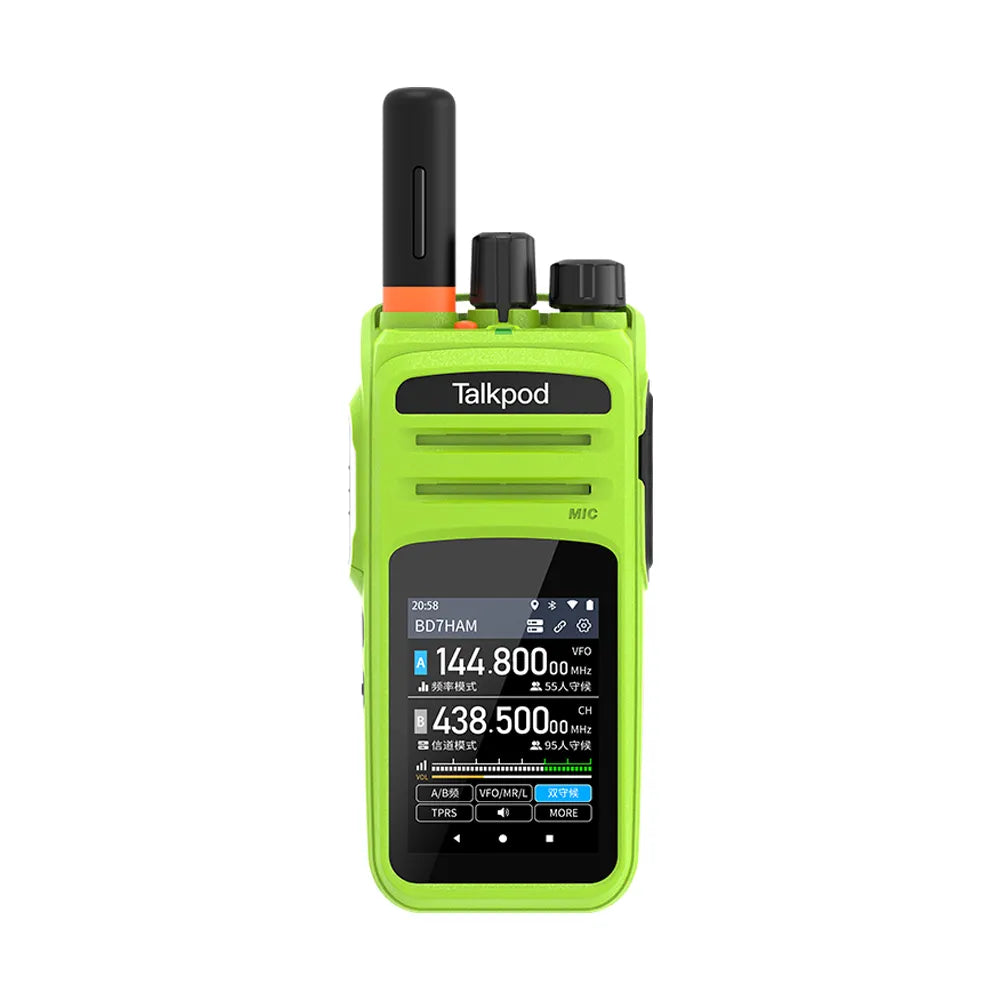
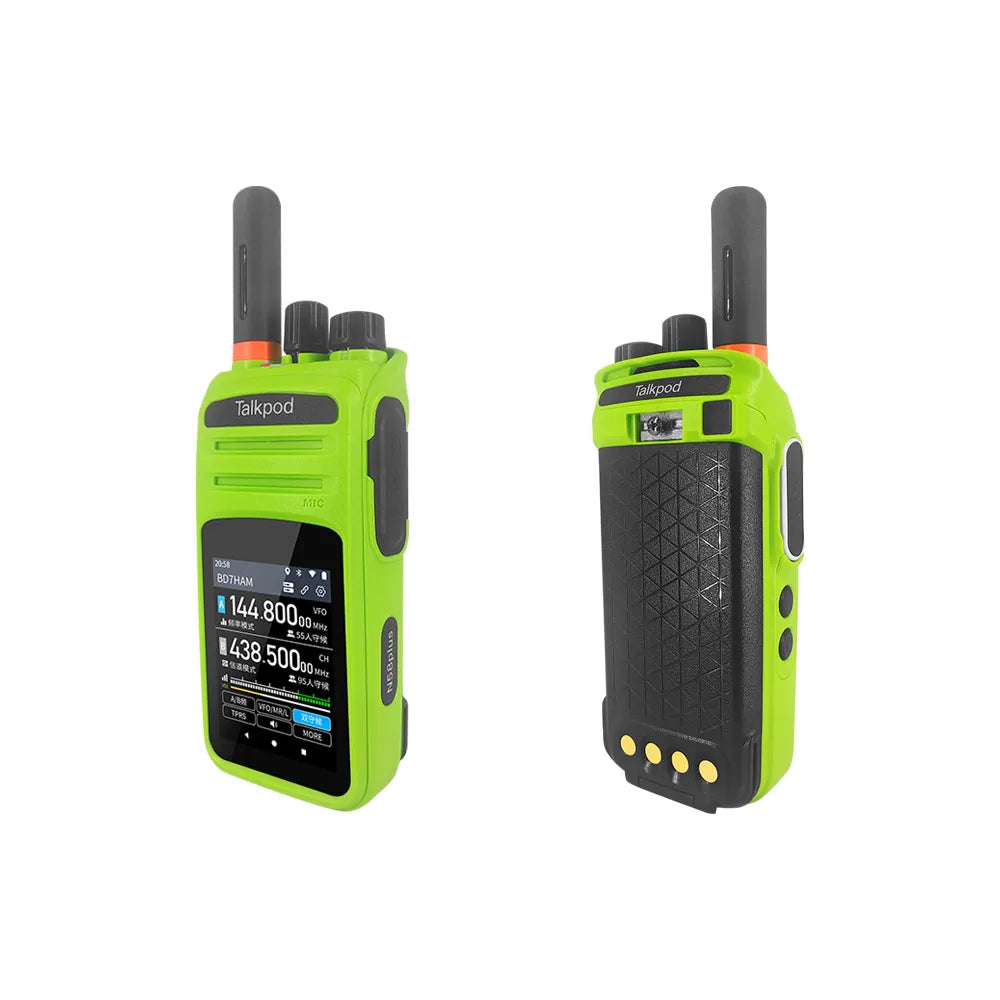
One of the most common questions we receive about the Talkpod N39plus is whether the radio is limited to a single cellular carrier.
The short answer is no.
The N39plus uses cellular data to connect to the VHAM platform and, when used with the official VHAM SIM, can access compatible partner networks according to the SIM service profile and local network availability.
In this guide, the Talkpod Team explains how N39plus cellular connectivity works, how automatic network selection operates, and how to install or replace the Nano SIM card.
Does the N39plus Only Work on AT&T?
No.
The N39plus is not designed to operate exclusively on AT&T.
With the official VHAM Data SIM, the radio can use compatible partner networks according to regional coverage, roaming agreements, available LTE bands, and the SIM service profile.
Depending on your location, the available network may be provided by carriers such as:
-
AT&T
-
T-Mobile
-
Verizon
-
Other compatible roaming partners
The user normally does not need to select the carrier manually.
How the VHAM Data SIM Works
The official VHAM SIM is designed as a multi-network cellular data service.
Instead of requiring the user to manually configure a specific carrier, the N39plus searches for an available compatible network when it starts up.
The basic connection process is:
Power On → Search for Network → Register with Compatible Carrier → Connect to VHAM
Once connected, the radio can log in to the VHAM platform and join your selected talk group.
What Happens When the Radio Is Stationary?
When the N39plus has successfully registered with a compatible cellular network, it will normally remain connected to that network while service remains stable.
There is usually no need to:
-
Change carriers manually
-
Select a frequency band
-
Re-enter the APN
-
Reconfigure your VHAM account
-
Re-enter your Group ID
The radio handles normal network registration automatically.
What Happens When Traveling?
When traveling between cities, regions, or coverage areas, the currently connected network may become unavailable.
In this situation, the N39plus can search for another compatible network available through the SIM service.
A typical transition may look like this:
Current Network → Signal Lost → Network Search → New Network Registration → VHAM Reconnect
During the handover, you may briefly notice:
-
Loss of network indication
-
Temporary VHAM disconnection
-
A short delay before Group ID status returns
-
Brief interruption to Push-to-Talk service
This is normal when the radio is switching between cellular networks or coverage areas.
Once network registration is restored, VHAM should reconnect automatically.
Supported Networks and Frequency Bands
The N39plus is primarily designed for 4G LTE Push-to-Talk over Cellular operation.
Users do not normally need to configure LTE frequency bands themselves.
The radio and SIM handle network selection automatically according to available compatible service.
🇺🇸 United States
Compatible partner networks may include major operators such as:
AT&T
Common LTE bands may include:
B2 / B4 / B5 / B14 / B17 / B29 / B30 / B66
T-Mobile
Common LTE bands may include:
B2 / B4 / B12 / B66 / B71
Verizon
Common LTE bands may include:
B2 / B4 / B13
Actual network access depends on regional coverage, roaming agreements, SIM configuration, and network availability.
🇨🇦 Canada
Depending on location and service availability, compatible networks may include:
-
Bell Mobility
-
Rogers Wireless
-
Telus
-
SaskTel
-
Videotron
Common Canadian LTE bands include:
B2 / B4 / B5 / B7 / B12 / B13 / B17 / B29
Again, users do not need to select these bands manually.
The N39plus searches for and registers with an available compatible cellular network automatically.
Why Doesn't My Radio Always Use the Same Carrier?
This is normal.
A multi-network SIM does not necessarily stay connected to one operator at all times.
Network selection may vary according to:
-
Geographic location
-
Partner-network availability
-
Roaming agreements
-
Network signal quality
-
Network congestion
-
SIM service configuration
-
Local carrier policies
For example, your N39plus may connect to one carrier at home and another compatible carrier while traveling.
Your VHAM identity is not affected by this change.
Your:
-
Call Sign
-
Group ID
-
Virtual Code
-
VHAM settings
remain the same even if the underlying cellular carrier changes.
Do I Need to Configure the APN Manually?
When using the official VHAM SIM, normally no.
The N39plus is pre-configured to automatically load the appropriate network settings required by the official SIM service.
Under normal conditions, users simply need to:
Install SIM → Attach Antenna → Power On → Wait for Registration
Manual APN configuration is mainly relevant when using certain third-party SIM cards.
Can I Use My Own SIM Card?
Yes, the N39plus supports compatible third-party Nano SIM cards.
This can be useful for users who want to use:
-
A local cellular provider
-
A standard smartphone data SIM
-
Another compatible PoC service
-
A business data plan
-
A compatible international SIM
However, third-party SIM compatibility depends on the network, frequency bands, APN configuration, and the type of data service provided by the carrier.
Choosing a Third-Party SIM
Not all data SIM cards operate in the same way.
Before installing a third-party SIM, check what type of data service it provides.
Standard Internet Data SIM
A SIM that provides normal internet access is generally the easiest option.
Examples include:
-
Smartphone data plans
-
Standard mobile broadband SIMs
-
General-purpose cellular data plans
If the SIM allows normal IP internet traffic and operates on compatible LTE bands, it should generally be suitable for connecting to the VHAM platform.
You may need to enter the carrier's APN manually.
Restricted or IoT SIM Cards
Some IoT, M2M, or enterprise SIM cards use restricted network profiles.
For example, the SIM may only permit communication with:
-
Specific IP addresses
-
Approved servers
-
Private APNs
-
Whitelisted network destinations
In this situation, the N39plus may show a cellular signal while still being unable to log in to VHAM.
For example:
Cellular Signal Available ✓
but:
VHAM Login Failed ✗
This does not necessarily indicate a problem with the radio.
The SIM provider may be blocking access to the VHAM service.
If you are using a restricted IoT SIM, contact your SIM provider and confirm that normal internet access or the required VHAM network traffic is permitted.
How to Insert or Replace the Nano SIM Card
The N39plus uses a Nano SIM, the same physical SIM size used by many modern smartphones.
Before replacing the SIM, completely power off the radio.
Step 1: Power Off the Radio
Turn the N39plus off completely.
Do not remove the battery while the device is powered on.
Step 2: Remove the Battery
Release the battery latch on the back of the radio.
Carefully remove the battery to access the SIM card compartment.
Step 3: Locate the SIM Card Slot
The SIM slot is located underneath the battery.
The N39plus uses a:
Nano SIM
Check the orientation of the SIM tray before inserting the card.
Step 4: Unlock the SIM Tray
Gently slide the metal retaining bracket in the direction indicated by the:
OPEN
marking.
Lift the metal cover carefully.
Do not force the SIM tray.
Step 5: Insert the Nano SIM
Place the Nano SIM into the tray.
Make sure:
-
The gold contacts are positioned correctly.
-
The angled corner matches the shape of the SIM holder.
-
The SIM sits flat inside the tray.
Incorrect installation may prevent the radio from detecting the SIM card.
Step 6: Lock the SIM Tray
Close the metal retaining cover.
Slide it toward the:
LOCK
position until the SIM is securely held in place.
Check that the SIM does not move before reinstalling the battery.
Step 7: Reinstall the Battery and Power On
Reattach the battery and turn on the N39plus.
Allow approximately 2 to 3 minutes for the radio to:
-
Detect the new SIM
-
Search for a cellular network
-
Register with the carrier
-
Establish a data connection
-
Connect to the VHAM platform
First-time registration with a new SIM may take slightly longer.
What If the New SIM Shows Signal but VHAM Does Not Connect?
A cellular signal icon only confirms that the radio can detect or register with a mobile network.
It does not necessarily confirm that internet access is available.
If the radio shows cellular signal but cannot log into VHAM, check:
-
Is mobile data active on the SIM?
-
Is the SIM data plan still valid?
-
Is the correct APN configured?
-
Does the SIM provide unrestricted internet access?
-
Does the SIM provider restrict access to specific servers?
-
Are the local LTE bands compatible with the N39plus?
If you are unsure about the APN, contact the cellular provider that issued the SIM.
Official VHAM SIM vs. Third-Party SIM
| Feature | Official VHAM SIM | Third-Party SIM |
|---|---|---|
| Automatic VHAM Setup | Yes | Depends on SIM |
| Automatic APN | Normally Yes | May require manual setup |
| Multi-Network Access | Supported according to plan | Depends on carrier |
| VHAM Compatibility | Pre-configured | Depends on data access |
| Annual Service | VHAM service plan | Carrier-specific |
| User Configuration | Minimal | May require additional setup |
For users who want the simplest setup experience, the official VHAM SIM is recommended.
Third-party SIM support provides additional flexibility for users who have specific network or business requirements.
Frequently Asked Questions
Does the N39plus only use AT&T?
No.
The official VHAM SIM can use compatible partner networks according to regional availability and its roaming profile.
Does it automatically switch between carriers?
The radio can search for another compatible network when the existing connection becomes unavailable.
The exact carrier selected depends on the SIM profile, roaming agreements, and available cellular networks.
Do I have to select LTE bands myself?
No.
The N39plus handles normal band and network selection automatically.
Will changing the SIM change my VHAM Group ID?
Normally, no.
Your Group ID and Call Sign are part of your VHAM configuration and are separate from the cellular carrier used to provide internet connectivity.
Can I use a normal phone SIM?
A compatible Nano SIM with standard mobile data access may work, provided the network bands and APN settings are supported.
Check with your carrier if you are unsure.
Can I use an IoT SIM?
Possibly.
However, restricted IoT SIMs may block traffic to VHAM servers.
Check with the SIM provider before use.
Cellular Connectivity Made Simple
The N39plus is designed to hide much of the complexity normally associated with cellular networking.
With the official VHAM SIM, the basic process is simply:
Power On → Automatic Network Registration → VHAM Login → Join Group → Press PTT
For users who need more flexibility, compatible third-party Nano SIM cards can also be used, provided they offer suitable LTE coverage and internet access.
Understanding the difference between the cellular network and the VHAM platform can also make troubleshooting much easier:
Cellular Network = Provides Internet Connectivity
VHAM = Provides Push-to-Talk Communication
Both must be available for normal N39plus operation.
For additional N39plus setup, activation, SIM renewal, network troubleshooting, and VHAM guides, please visit the Talkpod Support Center.

Leave a comment
All comments are moderated before being published.
This site is protected by hCaptcha and the hCaptcha Privacy Policy and Terms of Service apply.