
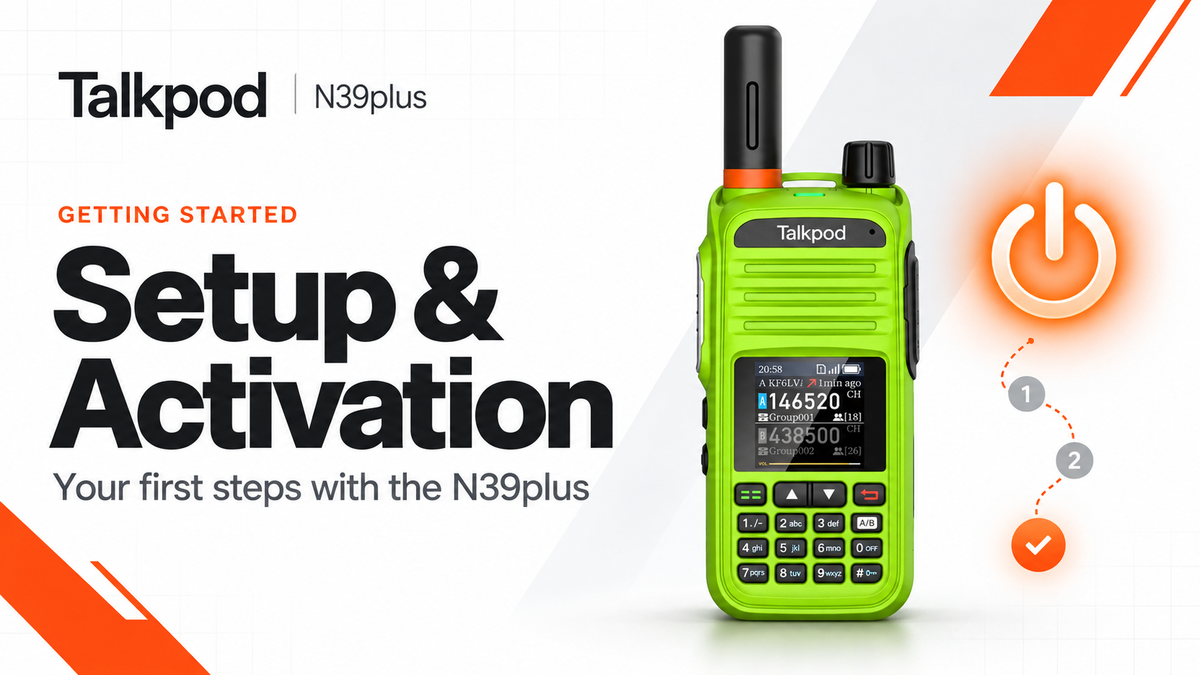
The Talkpod N39plus is designed to make wide-area Push-to-Talk communication simple and convenient. Once powered on and connected to a cellular network, the radio can automatically register with the VHAM platform, join talk groups, and begin communicating with other users.
This guide walks you through the initial setup, activation process, basic operation, and common troubleshooting steps for your new N39plus.
Important Notice: By powering on, connecting to the network, and activating your N39plus, you expressly agree to the VHAM platform rules. Please review the full Acceptable Use Policy (AUP) for community guidelines, service conditions, and network disclaimers.
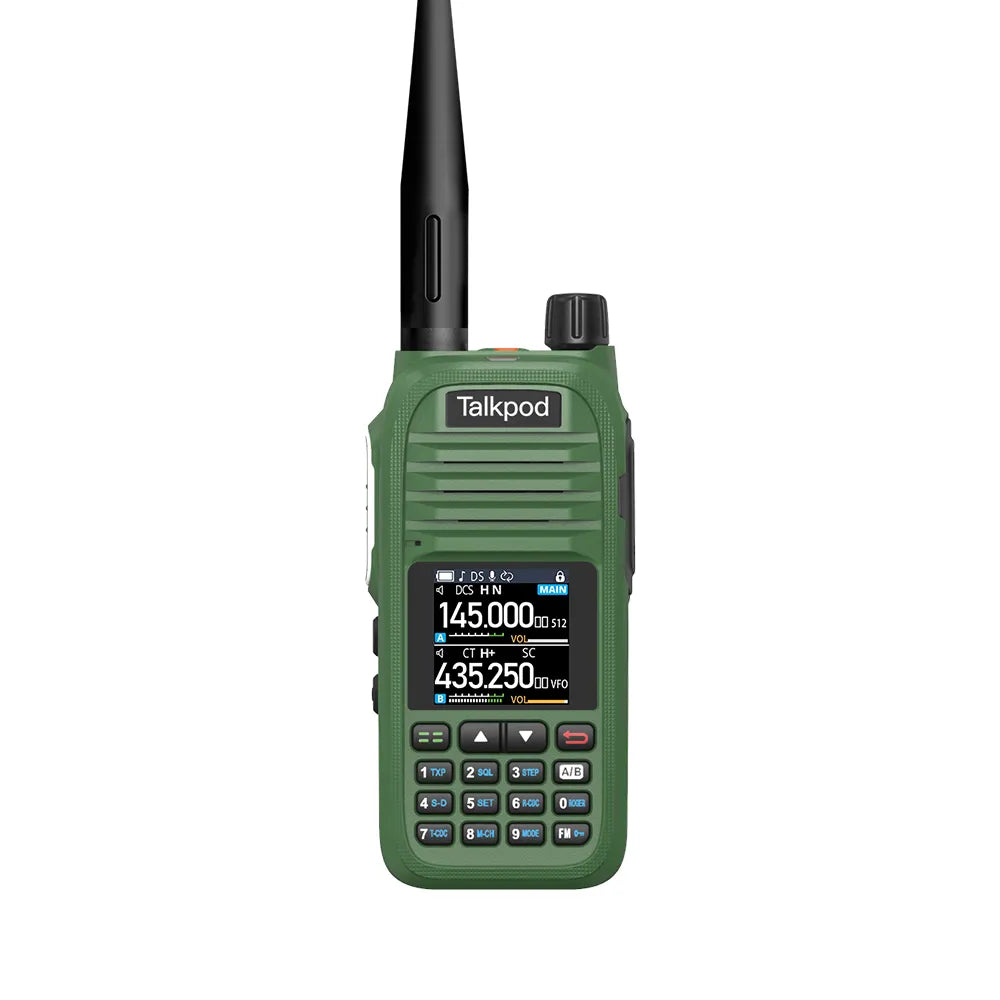
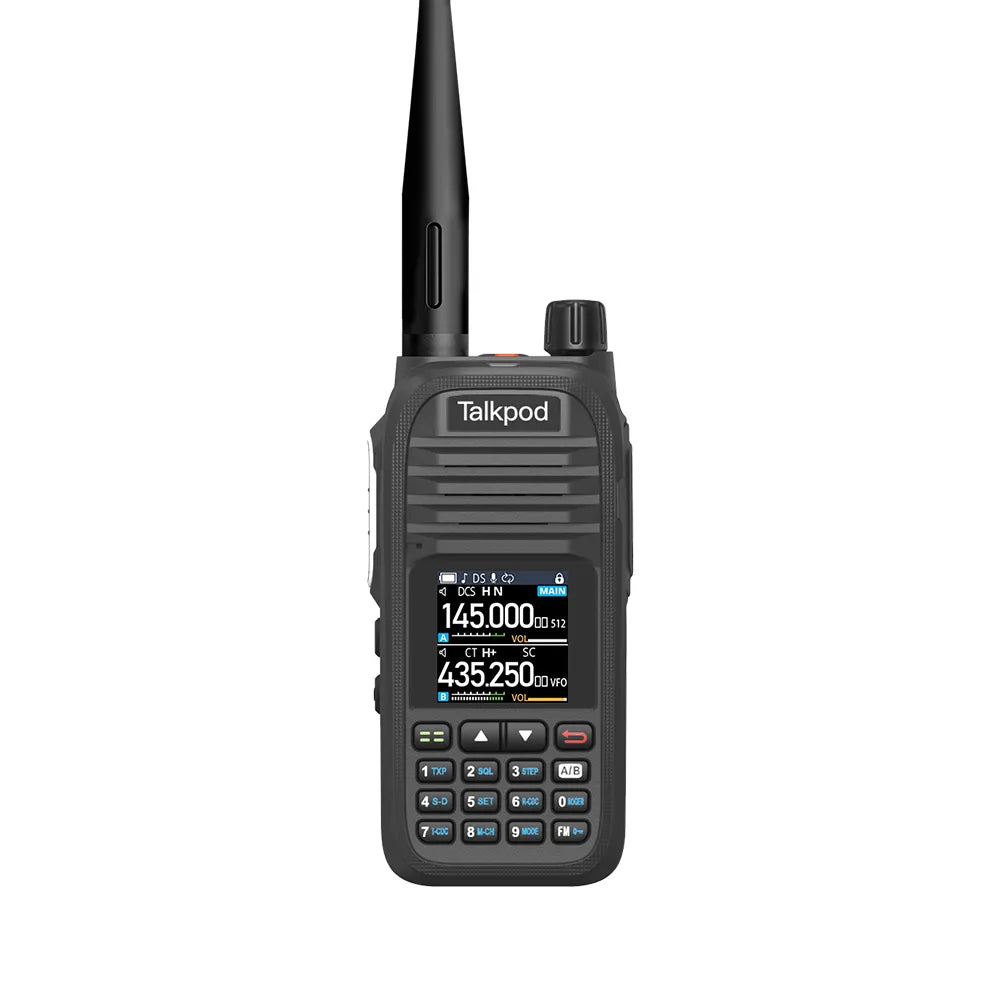
N39plus Hardware Overview
Before setting up your radio, check that all required accessories are included in the package.
Single Pack
A standard 1-pack may include:
-
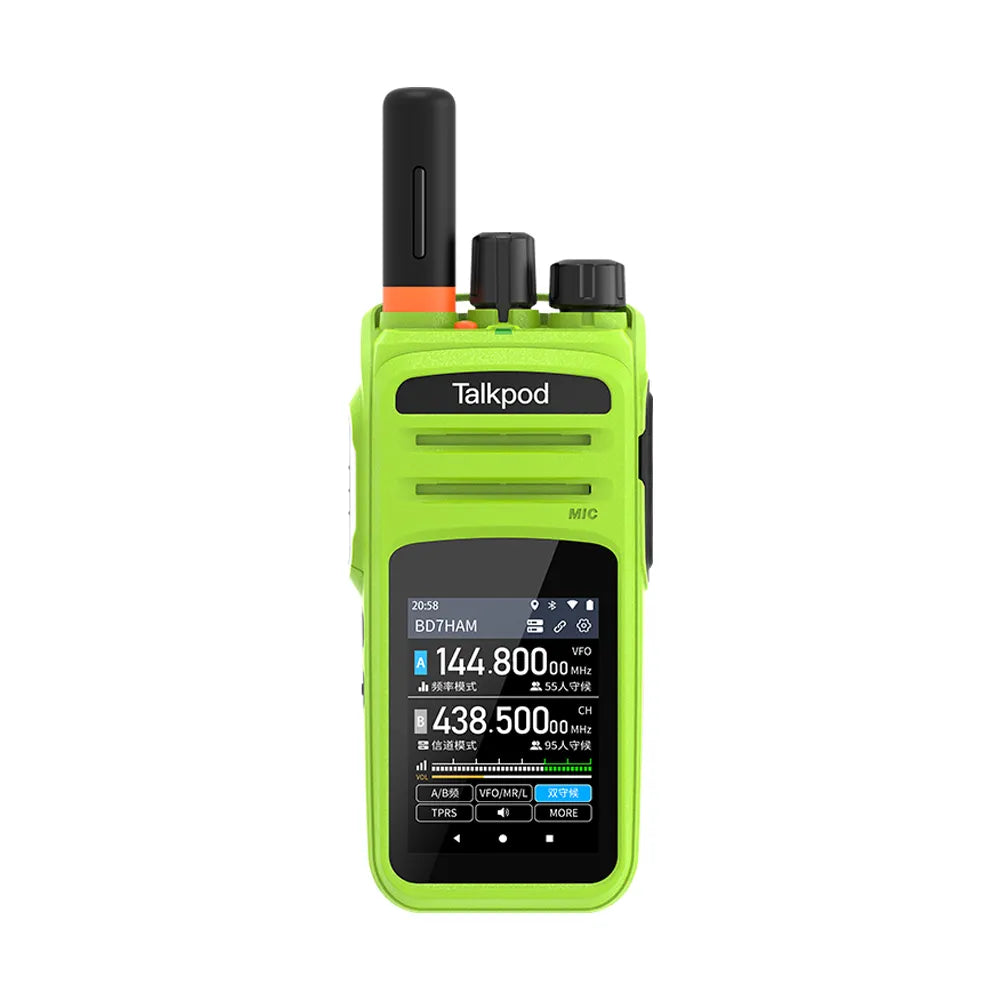
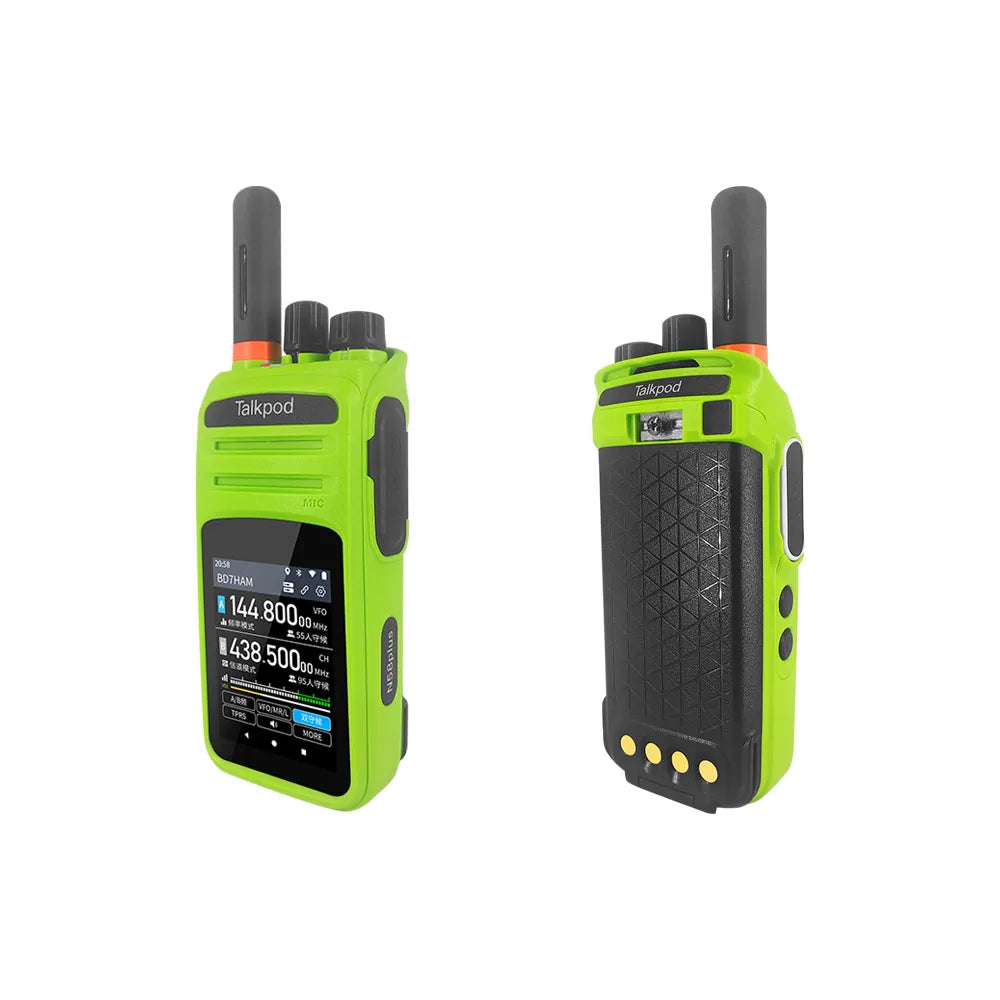
1 × N39plus Radio
-
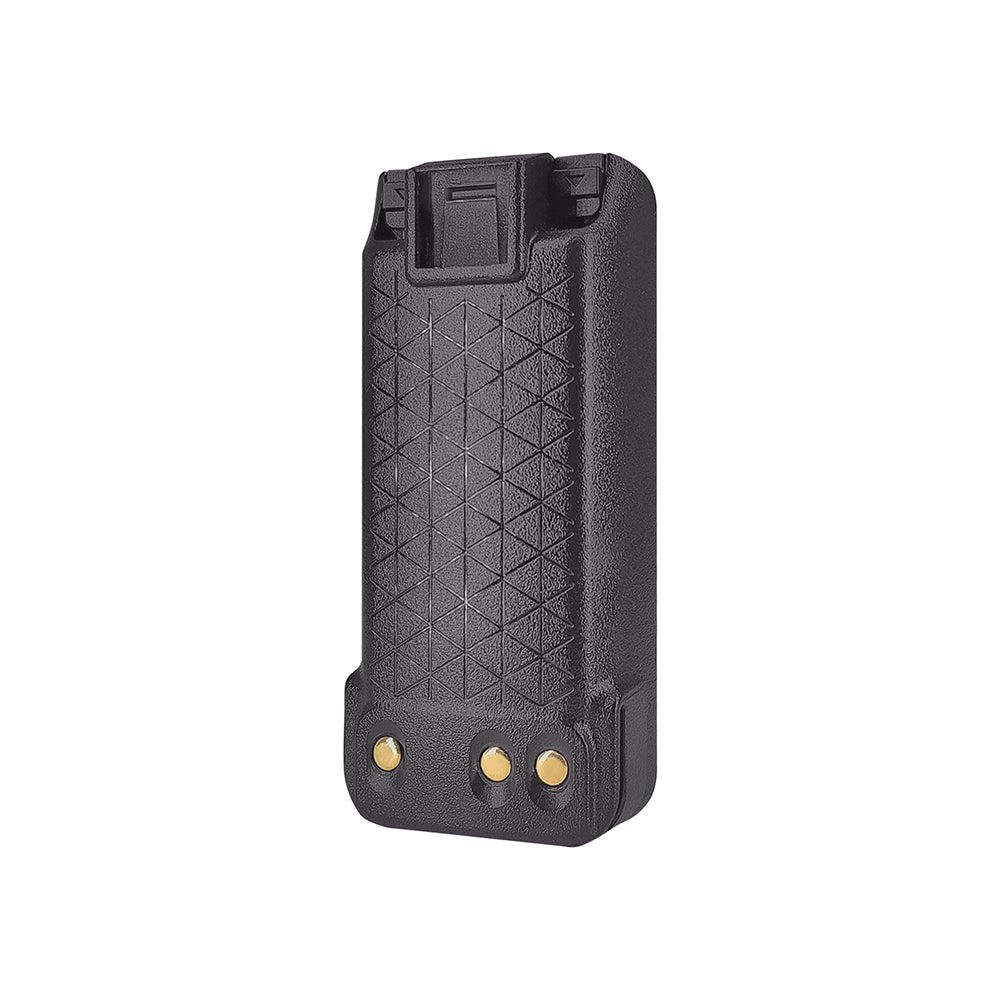
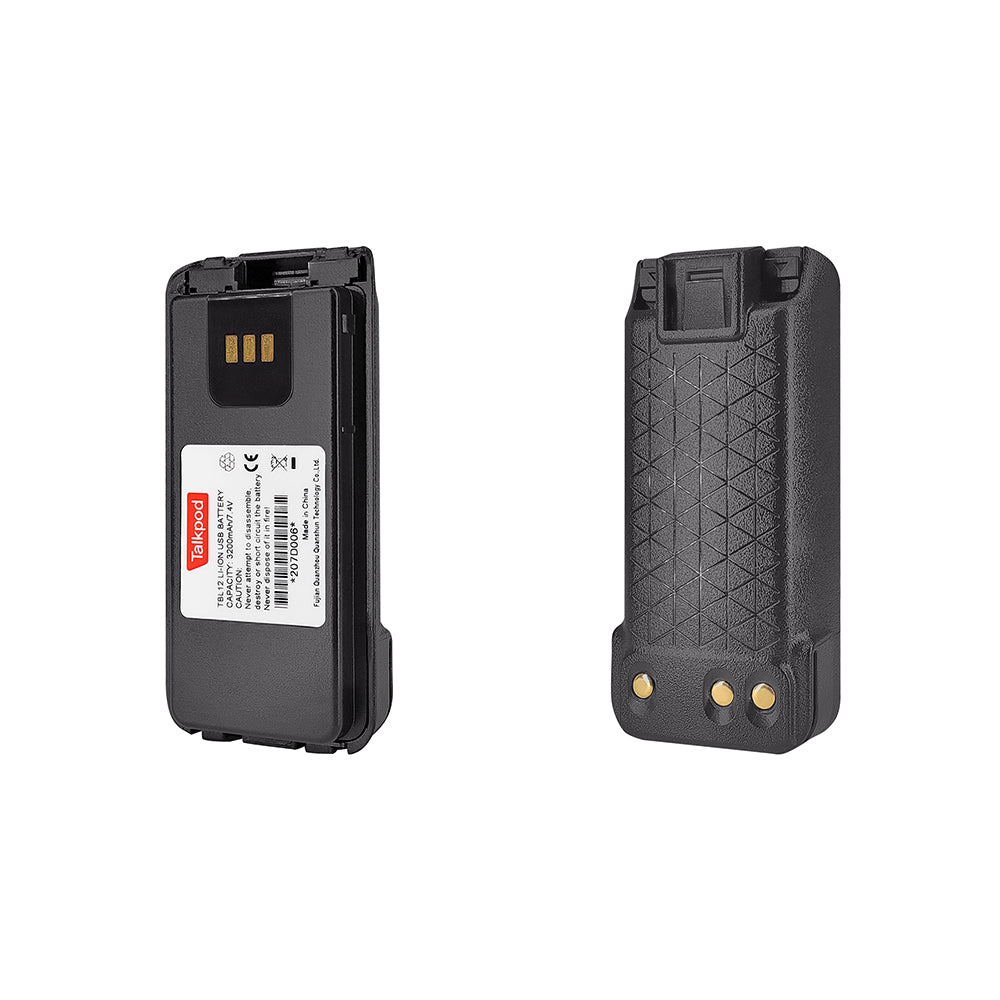
1 × TBL19 Li-ion Battery, 3.7V / 3000mAh
-
1 × TAT08 4G Antenna
-
1 × TPC08 USB-C Charging Cable
-
1 × TCA06 Power Adapter, 5V / 1A
-
1 × TCL05 Belt Clip
-
1 × TST01 Lanyard
-
1 × TSC02 SIM Rubber Cover
-
1 × SIM Card
-
1 × TPC03 Programming Cable
-
1 × Quick Start Guide / User Manual
Note: SIM card inclusion may vary by retailer. Please refer to the product listing from your seller for the exact package contents.
Two-Pack
A standard 2-pack may include:
-
2 × N39plus Radios
-
2 × TBL19 Li-ion Batteries, 3.7V / 3000mAh
-
2 × TAT08 4G Antennas
-
2 × TPC08 USB-C Charging Cables
-
2 × TCA06 Power Adapters, 5V / 1A
-
2 × TCL05 Belt Clips
-
2 × TST01 Lanyards
-
2 × TSC02 SIM Rubber Covers
-
2 × SIM Cards
-
1 × TPC03 Programming Cable
-
1 × Quick Start Guide / User Manual
Note: SIM card inclusion may vary by retailer. Please refer to the product listing for details.
How to Set Up and Activate Your N39plus
Step 1: Assemble the Radio
Before powering on the device, make sure the following components are installed correctly:
-
SIM card
-
4G antenna
-
Battery
-
Belt clip, if required
Make sure the antenna is firmly attached before attempting to connect to the cellular network.
Step 2: Power On the Device
Turn the top power knob clockwise until the N39plus powers on.
The radio will begin its startup sequence and attempt to connect to the network automatically.
Step 3: Allow Time for Initial Activation
During the first startup, the N39plus may require approximately 3 to 5 minutes to complete its initial activation process.
During this time, the radio may automatically:
-
Activate the SIM card
-
Connect to the available cellular network
-
Register the device
-
Log in to the VHAM platform
-
Enter the default talk group
For first-time activation, some devices may require more than one restart before the registration process is fully completed.
Tip: If the radio does not respond normally after approximately 3 minutes, restart the device and allow it to reconnect. In some cases, 2 to 3 restarts may be required during the initial setup process.
Step 4: Create or Join a Talk Group
Once the radio is online, you can use the keypad to enter any 6-digit group number between:
000000 and 999999
Entering a group number allows you to either join an existing group or create a new one.
When the connection is successful, the A/B icon on the screen will turn blue.
The group status indicator also provides useful information:
-
[1] — You are currently the only online user in the group.
-
[0] — The radio is still connecting, or the login attempt was unsuccessful.
Once another user joins the same group, you can begin communicating normally.
Step 5: Transmit and Receive with PTT
To speak, press and hold the PTT (Push-to-Talk) button on the side of the radio.
The LED indicator shows the current communication status:
-
Red LED: Transmitting
-
Green LED: Receiving
By default, the radio plays a notification beep at the beginning and end of a transmission. This can be disabled in the settings if preferred.
The N39plus supports two talk groups for quick access. Use the A/B button to switch between the two groups before transmitting.
Step 6: Use the Quick-Access Side Buttons
The N39plus includes programmable side keys for frequently used information.
By default:
Side Button 1 — Short Press
Displays a list of users who are currently online in your talk group.
This allows you to quickly check who is available before making a call.
Side Button 2 — Short Press
Displays your 10 most recent call records.
This is useful for reviewing recent communication activity.
Step 7: Set Your Display Name or Call Sign
To make it easier for other users to identify you, you can configure a custom display name or amateur radio call sign.
Navigate to the Info menu and enter the name you would like other users to see.
Using a recognizable name or call sign makes group communication clearer, especially when several operators are active at the same time.
Troubleshooting N39plus Network Registration
During first-time activation, the N39plus may occasionally fail to register with the cellular network or VHAM platform.
If this happens, the radio may remain on the main menu, fail to log in, or display a QR code together with an error message.
The following steps can help resolve most initial registration problems.
1. Check the Antenna and Cellular Signal
Make sure the 4G antenna is securely installed.
If the radio is being used indoors or in an area with weak cellular coverage, move to a location with a stronger signal, preferably outdoors or near a window.
Then restart the radio and allow it several minutes to reconnect.
If necessary, restart the radio several times during the initial activation process.
2. Scan the QR Code for Diagnostic Information
If the N39plus continues to display a QR code or network error, use your smartphone camera to scan the QR code shown on the radio screen.
The QR code can provide diagnostic information such as:
-
ICCID
-
Device information
-
Registration details
-
Network-related information
Send the information displayed after scanning the QR code to:
The Talkpod technical support team can use these details to check the device registration and assist with troubleshooting.
3. Check Data Plan or Service Status
If the radio displays a message indicating that:
-
The data plan has expired
-
The available data has been used
-
The service period has ended
please contact Talkpod Support or submit a support ticket.
The support team can check the SIM card and account status and advise whether the data plan requires renewal or further troubleshooting.
Quick Activation Checklist
Before contacting support, confirm the following:
-
The SIM card is installed correctly.
-
The 4G antenna is securely attached.
-
The battery has sufficient charge.
-
The radio has been given several minutes to complete activation.
-
The device has been restarted if the initial login was unsuccessful.
-
You are in an area with adequate cellular coverage.
-
The A/B icon turns blue after joining a group.
-
The group status does not remain at [0].
If the radio still cannot connect, scan the on-screen QR code and send the diagnostic information to Talkpod Support.
Start Communicating with Your N39plus
Once activation is complete, the N39plus is ready for group communication over the VHAM network.
The basic setup process is:
Install SIM and Antenna → Power On → Wait for Activation → Join a Group → Press PTT
After the initial setup, normal startup and network registration should be significantly faster.
With group communication, dual-group monitoring, recent call records, user identification, and cellular network connectivity, the N39plus provides a convenient platform for wide-area radio communication.
For additional setup guides, troubleshooting information, data plan support, and N39plus updates, please visit the Talkpod Support Center.

Leave a comment
All comments are moderated before being published.
This site is protected by hCaptcha and the hCaptcha Privacy Policy and Terms of Service apply.